

You think you’re doing everything right. Your techs are brilliant, and the bays are always full. But at the end of the month, the revenue isn’t what you expected. You might blame it on the pricing of the parts or even the occasional comebacks. But one of the overlooked reasons is your labor rates.
You can’t overcharge, and you can’t price it too low. Setting the correct labor rates is a challenge. Once you’ve set your labor rates, tracking them accurately is the next problem. You might also be tempted to set a standard labor rate and call it a day. But a quick oil change shouldn’t cost as much as repairing an AC system, which can take up to three days. This just eats your profits, job after job.
Shop management software is what you need. With this software, managing labor rates is one less thing you have to worry about.
Why labor rates are hard to get right
On paper, setting a labor rate sounds really simple. In reality, it isn’t so straightforward. A few things make getting the rate right harder than it looks:
- Techs are often not paid at the exact time they take on a repair, but rather on a standardized “book time” set by industry-approved labor guides.
- The labor guides base their rate on new cars and don’t take into account used and older models.
- Labor charges don’t just include the tech’s wage but also cover overhead costs such as facility maintenance and utilities.
- Manual tracking using paper, sticky notes, whiteboards, and paper cards causes errors, which end up taking too long to work out.
How shop management software helps
Most shop management platforms address labor rate management through a few core methods:
- Instead of a single universal rate, you can define multiple labor rates by job type, customer type, or vehicle type, so you know a $60 quick repair isn’t billed the same as a $600 diagnostic job. Once rates are entered in the system, your service advisors can apply the right one to each job rather than manually calculating it or guessing.
- Many platforms let technicians clock in and out of their individual jobs, giving you the actual time spent versus the billed time. You can use this feature to measure the efficiency of your techs and see how profitable each job is.
- You also get detailed reports on labor cost per job, labor revenue by technician, effective labor rate over time, and profit margins. So, you’ll be able to spot when the labor rates need adjustment.
How Way Repair Tech handles labor rates
When you first open the labor rates section in Repair Tech, you’ll see that the “Standard Base Labor Rate” is already filled. This is the rate you entered during the onboarding process, and by default, it’s the only rate the system shows. If your shop charges a single flat labor rate across all jobs and customers, you don’t have to add anything. Way Repair Tech will automatically apply this labor rate to every estimate it generates, so there’s nothing else to set up.
Adding multiple labor rates
Many shops, though, don’t operate at a single rate. Different shops have different labor rates based on:
- Customer type: Retail and fleet don’t have the same rate because fleet accounts often negotiate a lower or fixed rate.
- Vehicle type: The rates for European or diesel vehicles that frequently require specialized diagnostic work are unlike the rates of routine vehicle labor.
- Job type: The diagnostic time and standard repair time may carry different rates depending on your shop policy or due to the manufacturer agreements.
With Repair Tech, you can add as many labor rates as you require. From the labor rates screen, click “+ New Labor Rate.” This opens a popup where you can enter the rate amount and give it a distinct name, something like “Fleet Rate,” “Diagnostic Rate,” or “European Vehicle Rate,” so your team can identify it quickly later. Once you click save, that rate is added to your shop’s list of available labor rates.
Using an alternate labor rate
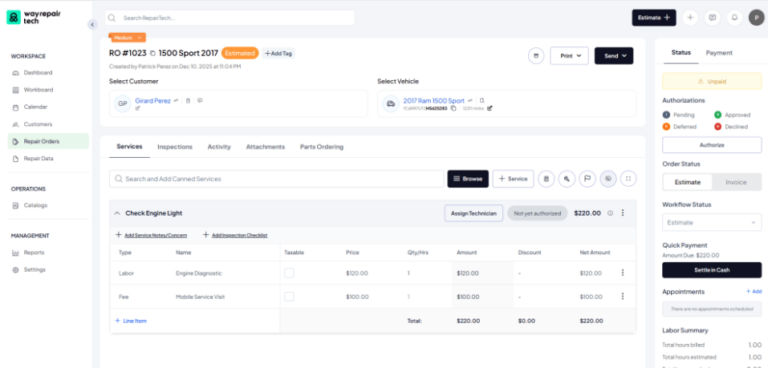
For any job that requires a different rate, service advisors and technicians can select the appropriate alternate rate directly within the Repair Order (RO), applying it to that specific job without affecting the shop’s pricing anywhere else.
The starting point
Setting up accurate labor rates is the first step, but pricing is only half the equation. Jobs don’t always go exactly as estimated, and Repair Tech accounts for that: labor lines on a repair order aren’t locked in once they’re added. If a job takes longer than expected or needs adjusting, you can update the labor cost on that RO.
From there, Way Repair Tech’s reporting gives you visibility into how your labor rates are performing. You can pull reports on labor costs and rates to see the pattern over time and catch it when a rate needs revisiting.
FAQs
A labor rate is the dollar amount charged per hour for a job (e.g., $150/hour for diagnostic work). Labor cost is that rate applied to the estimated or actual time for a specific repair.
Most shop management software, including Way Repair Tech, pulls standard labor times from industry guides like Motor, which set an expected repair time for a given job on a given vehicle. This is the “book time” used to calculate the labor line on an estimate.
Yes. In Repair Tech, a labor line added to an RO isn’t final. If a job takes more or less time than expected, or you need to apply a different rate, you can update it on that repair order later.
Divide the total cost of labor by the number of productive hours worked.
Want to see how Way Repair Tech manages labor rates for your shop? Schedule a demo, and we’ll walk you through it.